
Many small business owners use software every day without thinking about how it works. They send invoices, manage customer relationships, create social media posts, organize projects, and communicate with clients using online tools.

But what is SaaS software, and why do so many businesses rely on it?
SaaS stands for Software as a Service. Instead of purchasing software and maintaining it on your own computer or server, you access it online, usually through a subscription. The provider manages the infrastructure, updates, and much of the technical maintenance.
For small businesses, SaaS can make professional tools more accessible without requiring a large upfront investment in technology.

In this guide, you’ll learn what SaaS software is, how it works, what to consider before subscribing, and seven practical SaaS examples for small businesses in 2026.
What Is SaaS Software?
SaaS, or Software as a Service, is a software delivery model in which an application is hosted by a provider and made available to customers over the internet.
Instead of installing and maintaining the entire system yourself, you generally sign in through a web browser or app. Depending on the product, you pay monthly, annually, or according to your usage.
Common SaaS examples include customer relationship management (CRM) systems, accounting software, email marketing platforms, graphic design tools, and project management applications.
For example, a small business can use Canva to create marketing materials, QuickBooks Online to manage its finances, and a CRM to organize customer information. These tools are available online, and the providers maintain the underlying software.
How Does SaaS Work?
SaaS applications typically run on infrastructure managed by the software provider. The provider maintains the application and releases updates, while users access its features through an internet connection.
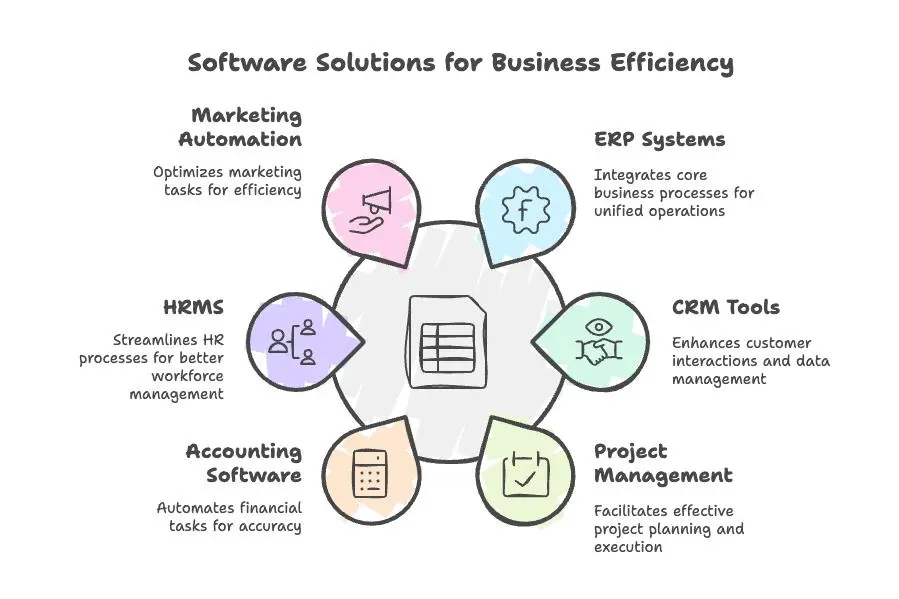
A typical SaaS process looks like this:
- Choose a software tool that meets your needs.
- Create an account and select a plan.
- Configure the application for your business.
- Access its features through a browser or supported app.
- Upgrade, downgrade, or cancel according to the provider’s terms.
The provider generally manages hosting and software updates. However, you still need to manage your account permissions, passwords, data, integrations, and security settings.
SaaS does not automatically eliminate every IT responsibility, but it can reduce the amount of infrastructure a small business needs to manage itself.
Why Do Small Businesses Use SaaS?
SaaS can be useful for businesses that want to start quickly, avoid managing their own servers, and access tools as their needs change.
Its main advantages include:
- Lower upfront costs: Many SaaS products offer subscriptions or free plans instead of requiring a large initial software purchase.
- Access from different locations: Teams can often use their tools from different devices and locations.
- Automatic updates: Providers generally maintain and update the software.
- Scalability: Businesses can often change plans as their requirements evolve.
- Integrations: Some tools connect with other applications to reduce repetitive data entry.
- Collaboration: Multiple users can work with shared records, documents, projects, or customer information.
However, SaaS also has potential drawbacks. Subscription fees can accumulate, advanced features may cost extra, and some businesses become dependent on a provider’s platform or data-export options.
The best approach is to choose software based on a specific business need rather than subscribing to every tool that looks useful.
How We Evaluated These SaaS Examples
The tools below represent seven common business needs: customer management, design, accounting, project management, business communication, and email marketing.
For each tool, we consider its primary purpose, typical use case, pricing considerations, and potential limitations. Pricing can change with billing frequency, user count, contacts, and plan features, so verify the provider’s current offer before subscribing.
The goal is to help you understand which type of SaaS tool may fit your business—not to suggest that every business needs all seven.
Quick Comparison: 7 SaaS Examples for Small Businesses
| SaaS tool | Best for | Free option or trial | Pricing to check |
|---|---|---|---|
| Keap | CRM and sales and marketing automation | 14-day free trial | Starts at $299/month or $2,988/year |
| HubSpot Sales Hub | Contact management and sales follow-up | Free CRM tools available | Free options; paid plans vary by product and seats |
| Canva | Graphic design and marketing content | Free plan | Free and paid plans |
| QuickBooks Online | Invoicing and bookkeeping | Availability of trial or offers varies | Depends on plan and promotion |
| Trello | Tasks and project management | Free plan | Free and paid plans |
| Google Workspace | Business email and collaboration | Trial availability varies | Depends on plan and billing |
| Mailchimp | Email marketing and newsletters | Free option subject to limits | Depends on contacts and features |
Important pricing note: Keap is a higher-cost option than many entry-level SaaS tools. Its official pricing page currently lists $299 per month with monthly billing or $2,988 per year with annual billing. It includes two user licenses, while additional contacts and users can affect the total cost.
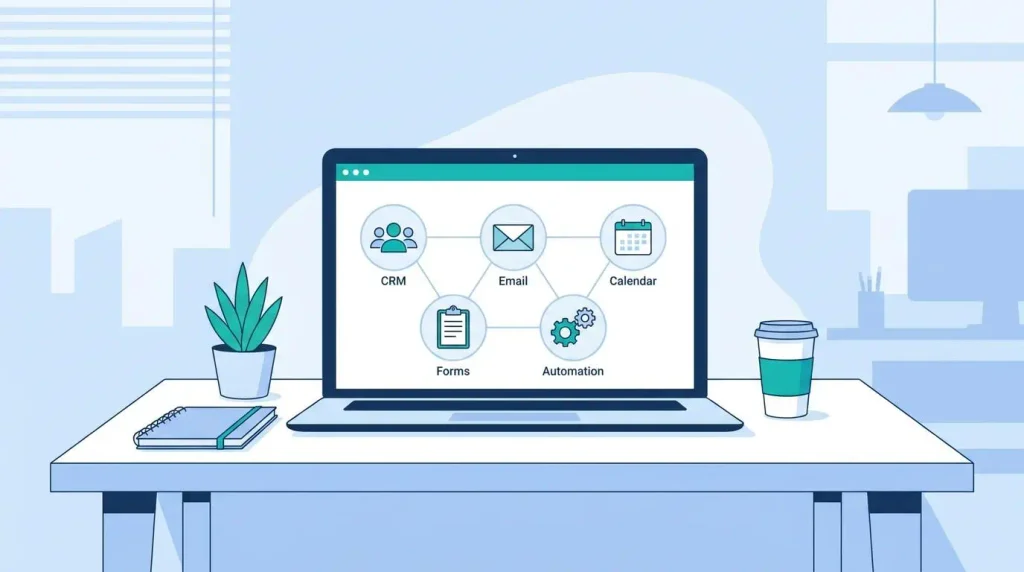
1. Keap: Best for CRM and Business Automation
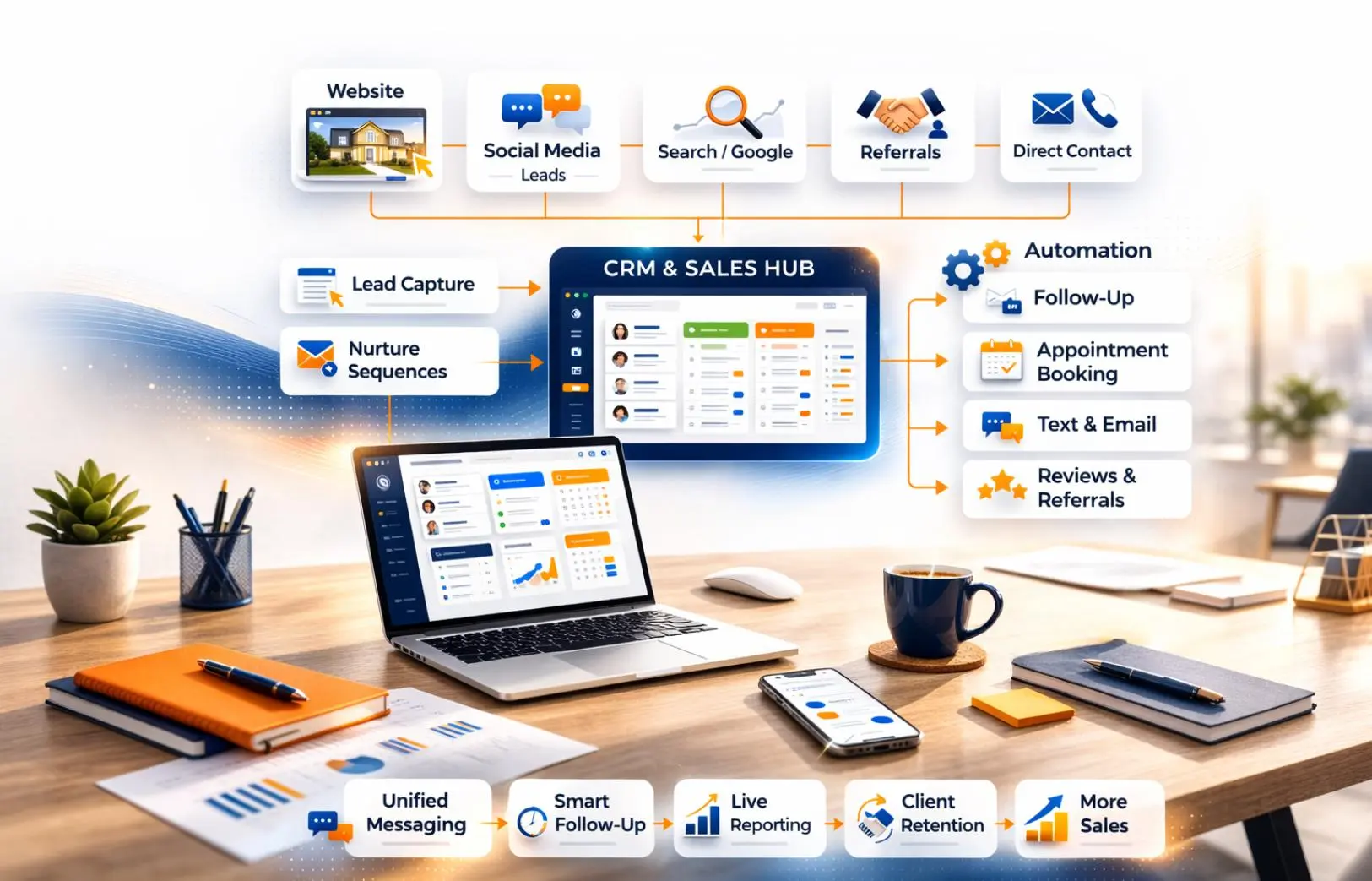
Keap is an all-in-one CRM and business automation platform designed for small businesses that want to connect customer management, sales follow-up, marketing, appointments, invoicing, and payments.
Unlike a simple task manager or contact database, Keap is designed to connect different stages of the customer journey. A business can organize leads, manage sales opportunities, automate follow-up, schedule appointments, and connect customer records with billing and communication workflows.
What Does Keap Do?
Keap combines several business functions:
- CRM and contact management: Organize customer details, interactions, and sales activity.
- Sales pipeline management: Track leads and opportunities through different stages.
- Marketing automation: Create workflows for lead nurturing and follow-up.
- Email and text messaging: Communicate with customers through supported marketing and messaging features.
- Appointments: Manage bookings and connect them with customer workflows.
- Invoicing and payments: Create invoices and manage payment-related processes.
- Integrations: Connect Keap with other business applications through available integrations and its API.
For example, a consulting business could capture a lead through a form, add the contact to its CRM, send an automated follow-up, schedule a meeting, and continue with a quote or invoice.
The main benefit is connecting these activities instead of managing every step in a separate tool.
Keap Pricing in 2026
Keap currently lists its subscription at $299 per month with monthly billing, or $2,988 per year with annual billing. The starting subscription includes two user licenses, and additional users currently cost $39 per month each.
Keap also requires implementation services for new customers. Contact volume, messaging usage, and payment processing may affect the total cost, so the advertised subscription price should not be treated as the complete cost of ownership.
Keap offers a 14-day free trial without requiring a credit card, although some features are limited during the trial.
Check our detailed Keap Pricing 2026 guide for a breakdown of subscription costs, implementation, users, messaging, and other potential expenses.
Pros and Cons of Keap
Pros
- Combines CRM and marketing automation.
- Connects sales follow-up with customer information.
- Includes appointment, invoicing, and payment-related tools.
- Supports integrations with other business applications.
Cons
- Costs more than many basic CRM and email marketing tools.
- Requires implementation and configuration.
- Can be more complex than a specialized tool.
- Some messaging features have geographic restrictions.
Who Should Consider Keap?
Keap may be worth evaluating if your business handles a steady flow of leads and needs CRM, marketing automation, sales follow-up, appointments, and billing to work together.
It may be excessive if you only need a contact database or a simple newsletter tool.
If you’re comparing CRM solutions before choosing one, read our guide to the best all-in-one CRM for small businesses. It explores broader CRM options and helps you compare platforms according to your needs.
You can also read our detailed Keap Review 2026 to learn more about the platform’s features, usability, strengths, limitations, and alternatives.
2. HubSpot Sales Hub: Best for Contact Management and Sales Follow-Up
HubSpot provides CRM tools that help businesses organize contacts, track sales opportunities, and manage customer interactions.
For a small service business, a CRM can replace scattered spreadsheets and notes with a centralized record of leads, conversations, tasks, and deals.
What Does HubSpot Do?
Depending on the products and plan used, HubSpot can help businesses:
- Store contact and company information.
- Track leads and sales opportunities.
- Organize deals in a sales pipeline.
- Schedule and manage follow-up tasks.
- Connect sales activity with other customer-facing tools.
For example, a freelance consultant could record enquiries, track discovery calls, and organize prospective clients by sales stage.
HubSpot offers free CRM tools, while paid features and pricing depend on the product, plan, number of users, and applicable terms.
Pros and Cons
Pros
- Free CRM tools are available.
- Helps organize contacts and sales opportunities.
- Can support a broader customer-management ecosystem.
Cons
- Advanced capabilities may require paid plans.
- Costs can rise as teams need more features or users.
- Businesses may need additional tools for specialized invoicing or operations.
Best for: Small businesses that need structured contact management and sales follow-up, especially when they want to begin with basic CRM functionality.
3. Canva: Best for Graphic Design and Marketing Content
Canva is an online design platform that helps businesses create visual content without requiring advanced graphic design skills.
It can be useful for producing social media graphics, presentations, promotional materials, simple documents, and other marketing assets.
What Does Canva Do?
Canva provides templates and design tools for:
- Social media posts.
- Presentations and pitch decks.
- Flyers and promotional graphics.
- Branded documents.
- Marketing materials and simple visual assets.
For example, a local service business can create social media posts and promotional flyers using templates rather than commissioning every design.
Canva offers a free plan and paid options with additional features. The available tools and pricing can change.
Pros and Cons
Pros
- Accessible to beginners.
- Offers templates for many business needs.
- Helps create consistent visual content.
Cons
- Some assets and features require a paid plan.
- Advanced design work may still require specialized software or professional support.
- Team and brand-management needs can influence the plan you require.
Best for: Small businesses, freelancers, and creators who regularly produce visual marketing content.
4. QuickBooks Online: Best for Invoicing and Bookkeeping
QuickBooks Online is cloud-based accounting software that helps businesses manage financial records, invoices, expenses, and other bookkeeping tasks.
For businesses that invoice customers regularly, accounting software can reduce manual data entry and provide a clearer overview of financial activity.
What Does QuickBooks Online Do?
Depending on the plan and configuration, QuickBooks can help users:
- Create and manage invoices.
- Track expenses and financial transactions.
- Organize accounting records.
- Monitor business income and expenses.
- Share relevant financial information with an accountant.
For example, a freelancer who invoices clients each month can use accounting software to keep invoices and expenses organized instead of maintaining separate spreadsheets.
QuickBooks offers multiple plans, and prices may vary according to promotions, billing frequency, and plan features.
Pros and Cons
Pros
- Helps centralize accounting information.
- Supports invoicing and expense tracking.
- Can simplify financial recordkeeping.
Cons
- Subscription costs depend on the selected plan.
- Initial setup can take time if records are disorganized.
- Some businesses may need an accountant or additional tools.
Best for: Freelancers and small businesses that regularly invoice clients and need organized financial records.
If invoicing is your main priority, explore our guide to the best invoicing software for freelancers.
5. Trello: Best for Task and Project Management
Trello is a project management tool built around boards, lists, and cards. It provides a visual way to organize tasks and track work as it progresses.
For a small business, this can be enough to coordinate recurring tasks without adopting a complicated project management system.
What Does Trello Do?
Trello can help you:
- Organize tasks into projects.
- Track deadlines and responsibilities.
- Plan content calendars.
- Manage client work.
- Create checklists for repeatable processes.
For example, a marketing freelancer could create a board with lists for ideas, tasks in progress, items awaiting approval, and completed work.
Trello offers a free plan and paid plans with additional capabilities.
Pros and Cons
Pros
- Visual and straightforward task management.
- Useful for recurring workflows.
- Can be adopted without a complicated setup.
Cons
- Complex operations may require additional structure or tools.
- Some advanced features depend on the selected plan.
- It is not a replacement for a full CRM or accounting platform.
Best for: Freelancers and small teams that need a clear view of tasks, deadlines, and project progress.
6. Google Workspace: Best for Business Email and Collaboration
Google Workspace brings business email, calendars, cloud storage, documents, spreadsheets, and meetings together in a subscription-based service.
It is useful for businesses that need a shared environment for communication and collaboration.
What Does Google Workspace Do?
Depending on the subscription, Google Workspace can provide:
- Business email using a company domain.
- Shared documents and spreadsheets.
- Cloud file storage.
- Calendars and meeting tools.
- Collaboration across a team.
For example, a two-person agency can use shared documents, a team calendar, and business email to coordinate client projects.
Google Workspace has different business plans, and pricing depends on the plan and billing arrangement.
Pros and Cons
Pros
- Combines common communication and productivity tools.
- Supports shared files and collaborative editing.
- Useful for distributed teams.
Cons
- Subscription costs increase as users are added.
- Businesses should consider storage and administrative requirements.
- It does not replace specialized CRM or accounting software.
Best for: Small businesses that need professional email, shared documents, calendars, and collaboration.
7. Mailchimp: Best for Email Marketing
Mailchimp is an email marketing platform used to create campaigns, manage subscriber lists, and communicate with an audience.
It can be useful for businesses that send newsletters, announcements, promotional emails, or basic customer follow-up messages.
What Does Mailchimp Do?
Depending on the plan, Mailchimp can help businesses:
- Build and manage email lists.
- Design marketing emails.
- Send newsletters and campaigns.
- Organize subscribers into audiences.
- Create supported automated email journeys.
- Review campaign performance.
For example, an online shop could use email campaigns to announce new products, share updates, or communicate with subscribers who have opted in.
Mailchimp offers different plan options, but pricing and feature limits can depend on contacts, sending volume, and the plan.
Pros and Cons
Pros
- Provides tools for email campaign creation.
- Supports audience management.
- Can help businesses communicate with subscribers at scale.
Cons
- Costs can increase as contact lists grow.
- Free-plan limits may not suit every business.
- Businesses needing advanced CRM and operational workflows may require other tools.
Best for: Small businesses that prioritize newsletters, email campaigns, and audience communication.
If email marketing is central to your business, our guide on how to build an email marketing funnel for your small business explains how to structure communication from signup to follow-up.
How Much Should a Small Business Spend on SaaS?
There is no single SaaS budget that works for every business. The right amount depends on the tasks you need to complete, the number of users, and the value the software provides.
A practical approach is to start with the tools that solve your most important problems.
A Basic Setup for a New Business
A new freelancer might begin with a free design tool, a task manager, and a basic CRM. A paid business email subscription may be useful once professional communication and collaboration become priorities.
The goal is to cover essential tasks without paying for advanced features that are not yet needed.
A Growing Service Business
A growing service business may need accounting software, structured lead management, email marketing, and project management.
At this stage, compare the total cost of separate subscriptions with the cost of a broader platform. An all-in-one system can simplify workflows, but it is not automatically cheaper.
For a closer look at CRM options that combine customer management and marketing features, read our guide to the best all-in-one CRM.
An Established Small Business
An established business may benefit from more advanced automation, team collaboration, reporting, and integrations.
For example, Keap may be relevant when a business wants to connect CRM, lead follow-up, appointments, and invoicing. However, its higher starting price makes it important to calculate the full cost before committing.
You should also account for implementation, additional users, contact volume, messaging, and payment processing where applicable.
How to Avoid Paying for Unused Software
Before subscribing to a SaaS product, ask yourself:
- What specific problem will this tool solve?
- How often will my team use it?
- Does it duplicate a tool I already pay for?
- Can it connect to my existing software?
- What will the subscription cost over a full year?
- Can I export my data if I leave the provider?
These questions help you build a software stack around actual business requirements rather than trends.
Which SaaS Tools Fit Different Business Types?
The best combination depends on your business model and daily workflow.
| Business type | SaaS categories to consider | Main priority |
|---|---|---|
| Freelancer | Business email, invoicing, task management | Delivering work and getting paid |
| Consultant or coach | CRM, scheduling, email marketing | Managing leads and client follow-up |
| Small agency | CRM, project management, accounting, collaboration | Coordinating clients and team work |
| E-commerce business | Accounting, email marketing, design, project management | Managing orders and customer communication |
| Content creator | Design, email marketing, collaboration | Producing and distributing content |
You do not need every tool in this guide. Start with the tasks that consume the most time or create the most problems, then add software when there is a clear reason to do so.
Frequently Asked Questions About SaaS Software
What is SaaS software in simple words?
SaaS software is an application you access online, usually through a subscription. The provider manages the underlying software and infrastructure, while you use the service to perform business tasks.
Examples include online accounting software, CRM systems, email marketing platforms, and graphic design tools.
How does SaaS work for a small business?
A small business creates an account, selects a suitable plan, configures the software, and accesses it through a browser or supported app. The provider generally manages hosting and software updates.
The business remains responsible for choosing appropriate permissions, protecting its accounts, and managing its data.
What are common SaaS examples for small businesses?
Common examples include Keap for CRM and business automation, HubSpot for CRM, Canva for design, QuickBooks Online for accounting, Trello for project management, Google Workspace for collaboration, and Mailchimp for email marketing.
Each tool serves a different purpose, so the best choice depends on your business needs.
Is SaaS cheaper than traditional software?
SaaS can reduce upfront costs because many products use subscriptions instead of large initial purchases. However, recurring subscription fees can add up over time.
Compare the total cost over the period you expect to use the software, including additional users, integrations, implementation, and optional features.
Is SaaS secure?
SaaS security depends on the provider, the product, and how the business configures and uses it. Providers generally manage infrastructure and software updates, but customers still need strong passwords, appropriate access controls, and suitable data-handling practices.
Before choosing a tool, review its security documentation, data policies, and account-management options.
What is the difference between SaaS and cloud computing?
Cloud computing is a broad category of computing services delivered over a network, including infrastructure, platforms, and software. SaaS is a specific model in which users access a provider-managed software application as a service.
In other words, SaaS is one type of cloud service.
How do I choose the right SaaS tool?
Start by identifying a specific business problem, comparing the features you need, checking the total subscription cost, and confirming that the tool works with your existing processes.
If several platforms look suitable, compare their limitations and test them where a trial is available before making a longer-term commitment.
Explore More SaaS Guides
Understanding what SaaS software is becomes more useful when you can compare tools for a specific business task.
Explore these guides from SaaSGuard Review:
- Best All-in-One CRM for Small Businesses: Compare CRM platforms for contact management, sales follow-up, and marketing automation.
- Keap Review 2026: Explore Keap’s features, usability, advantages, limitations, and alternatives.
- Keap Pricing 2026: Understand the subscription price and other costs to consider.
- Best Invoicing Software for Freelancers: Compare tools for creating invoices and managing payments.
- Best AI Tools for Small Business: Explore AI tools that may help with everyday business tasks.
- How to Build an Email Marketing Funnel: Learn how to structure email communication and customer follow-up.
Final Thoughts
SaaS software gives small businesses access to online tools for customer management, accounting, design, project management, communication, and marketing without having to maintain their own software infrastructure.
The right choice depends on the problem you want to solve. A freelancer may need invoicing and task management, while a growing service business may benefit from a CRM that connects lead management with marketing automation.
Keap is one option for businesses that need several of these processes connected, but its higher starting cost means it is not the best fit for every beginner.
Start with your most important business needs, compare the total cost of each solution, and add software only when it provides clear value.

Michael puts SaaS tools through real workflows and scrutinizes their pricing – flagging hidden fees and upgrade traps so readers know what they’ll actually pay. Honest verdicts, including the cons.
